Installation
Panelgator is available for Windows 10 and 11 (64-bit). Installation takes under a minute.
Download Panelgator
Section titled “Download Panelgator”Download the latest version of Panelgator directly here:
Run the installer
Section titled “Run the installer”Double-click Panelgator-Setup.exe.
SmartScreen warning
Section titled “SmartScreen warning”On the first install, Windows may display a blue warning:
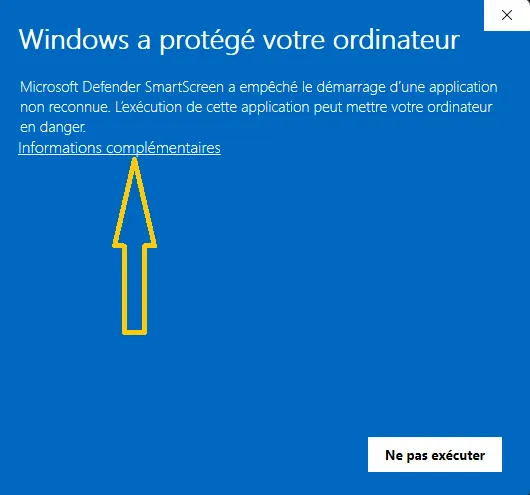
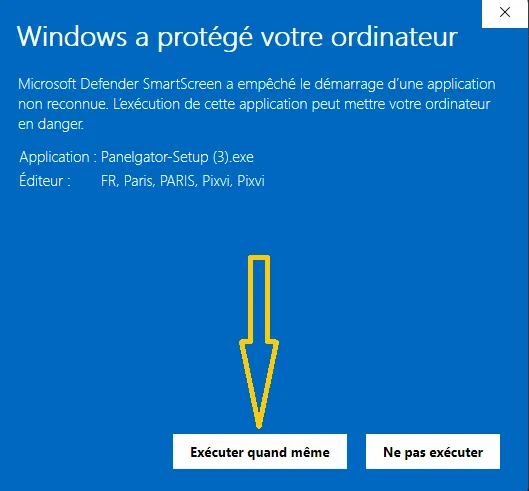
“Windows protected your PC. Microsoft Defender SmartScreen prevented an unrecognized app from starting.”
This is temporary. Panelgator is a recent application that needs to accumulate enough downloads to earn Windows’ trust.
To continue the installation:
- Click “More info”
- Click “Run anyway”
Express installation
Section titled “Express installation”Panelgator uses a one-click installer: you simply see a progress bar.
Installation takes 10 to 30 seconds depending on your drive.
Automatic launch
Section titled “Automatic launch”When the installation finishes, Panelgator launches automatically.
You’ll also find:
- A shortcut on the Desktop
- An entry in the Start menu
Uninstall Panelgator
Section titled “Uninstall Panelgator”Control Panel > Programs > Panelgator, then click Uninstall.
Or from the Start menu: right-click Panelgator > Uninstall.
The application is removed, along with the Desktop and Start menu shortcuts.
Updates
Section titled “Updates”Each time Panelgator starts, the application checks our update server for a new version.
If a new version is available:
- Download runs in the background, with no notification or interruption
- When the download is complete, a window offers: “Update available. Install and restart now?”
- Install now: Panelgator closes, the installer runs, the application restarts on the new version
- Later: the update stays downloaded and ready. You’ll be prompted again at the next launch.
If you choose “Later”, your current work isn’t interrupted. The update will wait for you.
What’s next
Section titled “What’s next”- First launch — the main window and the trial period
- License activation — when the free trial ends
- Tutorial: First project in 5 minutes — get hands-on