Stock and materials
Stock is the set of materials available within a project. Each material contains stock entries.
Stock for project "Dupont Kitchen"├── "White melamine W980 ST9 — 19 mm"│ ├── Full sheet 2800 × 2070 × 5│ ├── Pre-edged 2800 x 560 × ∞│ └── Drop 1500 × 1220 × 1│├── "White melamine W980 ST9 — 16 mm"│ ├── Full sheet 2500 × 1250 × 3│└── "Natural oak melamine H1318 ST10 — 19mm" └── Full sheet 2800 × 2070 × 2Material
Section titled “Material”The material is the definition. It contains:
- Name (free label) — for example White melamine W980 ST9
- Thickness — for example 19 mm
- Grain direction — none, length, width
A single material can contain several types of stock entries and different dimensions.
Stock entry types
Section titled “Stock entry types”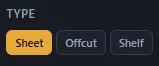
Full sheet
Section titled “Full sheet”A raw, never-cut panel. The squaring allowance (margin trimmed off the edges) applies to 4 sides.
An already-cut panel kept from a previous run. Drops are also squared on 4 sides. If a drop is available, the algorithm uses it as a priority before opening a new full sheet.
Pre-edged board
Section titled “Pre-edged board”A panel or strip pre-banded on one length, typically a melamine shelf, worktop, with an edge already applied on one side. Pre-edged boards are only squared on 2 sides (the ends), because the banded edge and its opposite are considered finished.
When edged-board mode is enabled (Settings tab), the algorithm places parts with at least one edge on pre-edged boards as a priority and aligns the part’s edge with the pre-banded side.
That said, the algorithm avoids placing parts without an edge on pre-edged boards.
Priority order
Section titled “Priority order”In short, the algorithm distributes parts as follows:
-
As a priority on drops (if available)
-
As a priority on pre-edged boards (if available and the part has 1 compatible edge)
-
Then on full sheets
Quantity
Section titled “Quantity”For each stock entry, you indicate the available quantity:
Limited
Section titled “Limited”
A finite number of panels. Panelgator stops at this quantity and flags the parts that don’t fit as unplaceable.
Unlimited
Section titled “Unlimited”
Panelgator can use as many panels as needed. Ideal when you want to know the quantity required for your project.
Favorite material ⭐
Section titled “Favorite material ⭐”You can designate a favorite material by clicking the star next to its name. The favorite material has two roles:
- It’s pre-selected in the new part form to speed up entry
- It’s used for imported parts that have no mapped material
The star is gold for the favorite material, gray for the others.

Permanent stock 📌
Section titled “Permanent stock 📌”For materials you use often, you can pin them by clicking the pin icon.
A pinned material is kept across projects. When you create a new project, your pinned stock is already there without having to re-enter it.
The pin appears in gold for permanent materials.

Good to know
Section titled “Good to know”- You can collapse/expand each material in the list to free up visual space when you have a lot of entries
- A material can’t be deleted if it has at least one part using it. Reassign the parts elsewhere first before deleting.
- Drops you generate can be reinjected in a future project by adding them manually with the type Drop. Panelgator does not auto-track between projects.
What’s next
Section titled “What’s next”- Grain direction and edges — how to flag a material as having grain
- Alignment and saw kerf — other settings that influence the cutting layout
- Stock tab — detailed interface reference