License activation
After purchasing a Panelgator license, you receive an activation key by email. This page explains how to use it.
No license yet? Check out our packs.
Key format
Section titled “Key format”A Panelgator license key always has the following format:
PNLG-XXXXXXXX-XXXXXXXX-XXXXXXXXIt starts with PNLG-, followed by 3 blocks of 8 uppercase alphanumeric characters.
Open the activation modal
Section titled “Open the activation modal”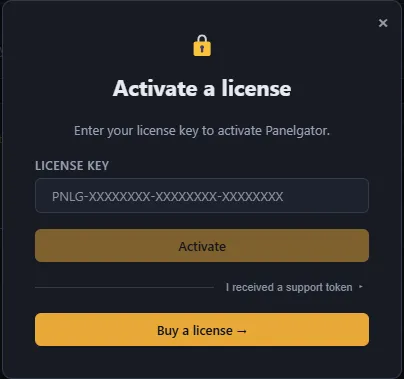
Two situations:
You’re in the trial period
Section titled “You’re in the trial period”Menu Help > Activate a license.
Your trial has ended
Section titled “Your trial has ended”The modal opens automatically when the application starts. You must activate to keep using Panelgator.
Activation
Section titled “Activation”- Paste your key in the “License key” field. The “Activate” button becomes enabled when the format is valid.
- Click “Activate”. Panelgator contacts the license server.
- If the key is valid:
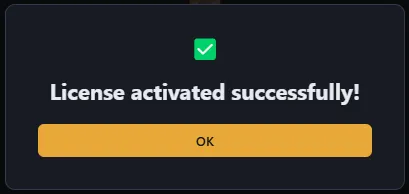
- A success screen appears: “License activated successfully!”
- Click OK — the application restarts in active mode.
- If the key has an issue, an explicit error message is displayed (see below).
Check your status
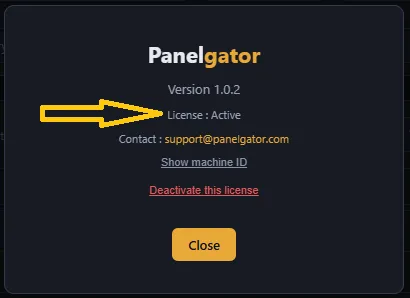
Section titled “Check your status”At any time: Help > About.
You can see:
- Your Panelgator version
- Your license status (Active, Trial, Expired…)
- Your machine ID (click to reveal)
- Support contact
Error messages
Section titled “Error messages””License key not found”
Section titled “”License key not found””You entered a key that doesn’t exist in our database. Check:
- The exact spelling (no spaces, no
O/0confusion) - That you’re using the key received by email (not another code)
“This license has been revoked”
Section titled ““This license has been revoked””The license has been suspended. Contact support@panelgator.com to find out why.
”Maximum number of installations reached”
Section titled “”Maximum number of installations reached””A Panelgator license allows one active machine at a time. If you switch machines, you must first release the old one:
- Either from the old machine: Help > About > Deactivate
- Or by emailing
support@panelgator.com(with your key)
“Unable to contact the server”
Section titled ““Unable to contact the server””Internet connection issue, or server unreachable. Check:
- Your network connection
- That
panelgator.comis reachable from your browser - That your antivirus / corporate proxy isn’t intercepting HTTPS requests
”Invalid request”
Section titled “”Invalid request””A technical error tied to network communication. Often caused by a corporate proxy altering the requests. Try from another network (mobile hotspot for instance) to confirm.
Support token activation
Section titled “Support token activation”Our support can provide a manual activation token.
The process has two steps: get your machine ID, receive a server-signed token, and apply it in Panelgator.
Step 1 — Get your machine ID
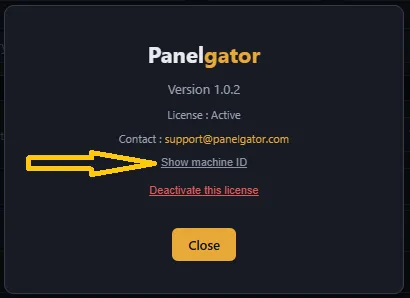
Section titled “Step 1 — Get your machine ID”- Help > About
- Click “Show machine ID”
- The code appears (64 hexadecimal characters). Click the copy icon to copy it to the clipboard.
Step 2 — Request a token from support
Section titled “Step 2 — Request a token from support”Email support@panelgator.com with:
- Your license key
- Your machine ID (pasted from the previous step)
- The reason why online activation isn’t working for you
We reply within 48 business hours with a signed token.
Step 3 — Apply the token
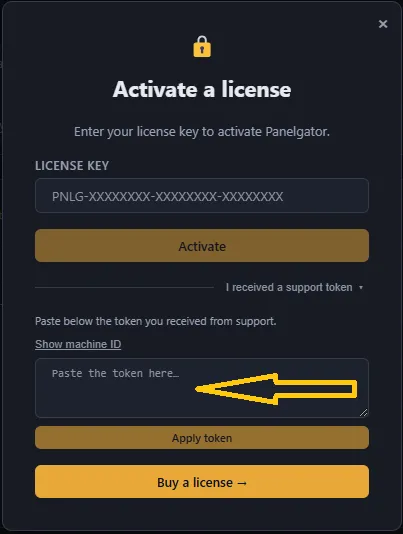
Section titled “Step 3 — Apply the token”- In the activation modal, click “I received a token from support”
- A text area appears
- Paste the token received by email
- Click “Apply the token”
Panelgator verifies the token and activates the application if everything is valid.
Deactivate to release the machine
Section titled “Deactivate to release the machine”If you want to use Panelgator on another machine, you must first release your license on the current one.
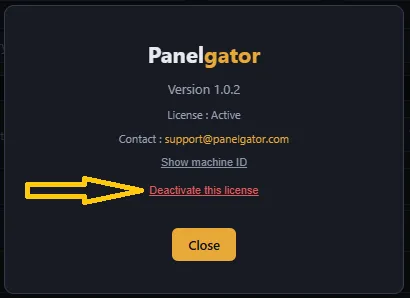
- Help > About
- Click “Deactivate this license” (at the bottom of the modal, below the machine ID)
- A confirmation window appears: “This action releases your license on this machine. You’ll return to trial mode (or expired if the period has passed). You can then activate the license on another machine.”
- Click “Deactivate” to confirm
On the server side, your activation slot is released immediately. Panelgator switches back to:
- Trial if your 30-day period isn’t over — you recover the remaining days
- Expired trial if the period has passed — the activation modal is forced
You can activate your license on another machine right away.
If you lost access to the old machine
Section titled “If you lost access to the old machine”If the old machine is unreachable (failure, theft, sale, Windows reformat…), email support at support@panelgator.com with your license key. We’ll release your activation remotely.
What’s next
Section titled “What’s next”- First launch — overview of the interface
- Tutorial: First project in 5 minutes — get hands-on
- FAQ: License and purchase — frequent questions