Part types
The type is an optional attribute of parts: a free-form text (“Body”, “Front”, “Drawer”, “Plinth”…) used to label, filter, and group.
Unlike the group, which physically gathers parts belonging to the same piece of furniture, the type is transversal. A “Front” type can belong to multiple groups (Cabinet A, Cabinet B, Column…).
Where do types come from?
Section titled “Where do types come from?”Types are populated through three channels.
Manual entry
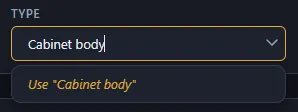
Section titled “Manual entry”In the part form, the Type field behaves like the Group field. If no type exists yet, you can type directly whatever you want and create a new type that way.
Once created, a type value is carried by the parts that reference it. It disappears from the autocomplete list automatically when no part carries it anymore.
BXF2 import
Section titled “BXF2 import”Imported parts are grouped into 4 categories:
- Cabinet body — sides, top, bottom, back, etc.
- Fronts — doors, headers, drawer fronts
- Drawers — sides, backs, bottoms
- Other — unrecognized models
Each imported part receives the matching type. See Mapping and part types for the full table.
CSV import
Section titled “CSV import”The Type field of your CSV import is used as-is. Any text value is accepted — you can use your own conventions (“Plinth”, “Visible side panel”, “Cladding”…).
What is it useful for?
Section titled “What is it useful for?”Filter and select
Section titled “Filter and select”The Select by > Type button in the parts list shows every value present in the project. Clicking one of them checks all matching parts at once so you can apply a bulk action.
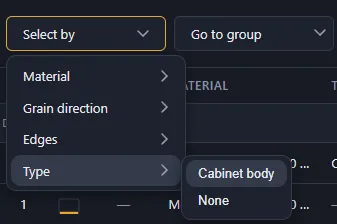
Concrete example: select every part with the type Cabinet body and assign them the material “White melamine W980 ST9 — 19 mm”.
Group the PDF by type
Section titled “Group the PDF by type”In the PDF export (summary), the Grouping option offers By part type: one table per category, sub-sorted by group.
Assign a type to multiple parts
Section titled “Assign a type to multiple parts”Once multiple parts are selected, you can assign a shared type from the selection bar: type the value in the Type field or pick an existing value from the dropdown.
Enable type display
Section titled “Enable type display”Type display in the part form and the list is controlled by the setting Settings > General > Show part type (disabled by default). Enable it if you work with BXF2 imports or if you want to categorize manually.
Good to know
Section titled “Good to know”- The type is purely textual: case and spaces matter (“Front” and “front” are two distinct types).
- The type does not influence the cutting layout algorithm — its only role is filtering and organization.
- If you want to normalize your types (for example unify “Facade” and “Front”), use Select by > Type then bulk-assign the target value.
What’s next
Section titled “What’s next”- Project, group, parts — the project structure
- Grain direction and edges — grain orientation