First launch
The main window
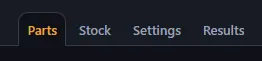
Section titled “The main window”The window is organized around 4 tabs:
- Parts — Table of your parts and groups
- Stock — Table of available panels
- Settings — Cut parameters and user preferences
- Results — Layout visualization and access to exports
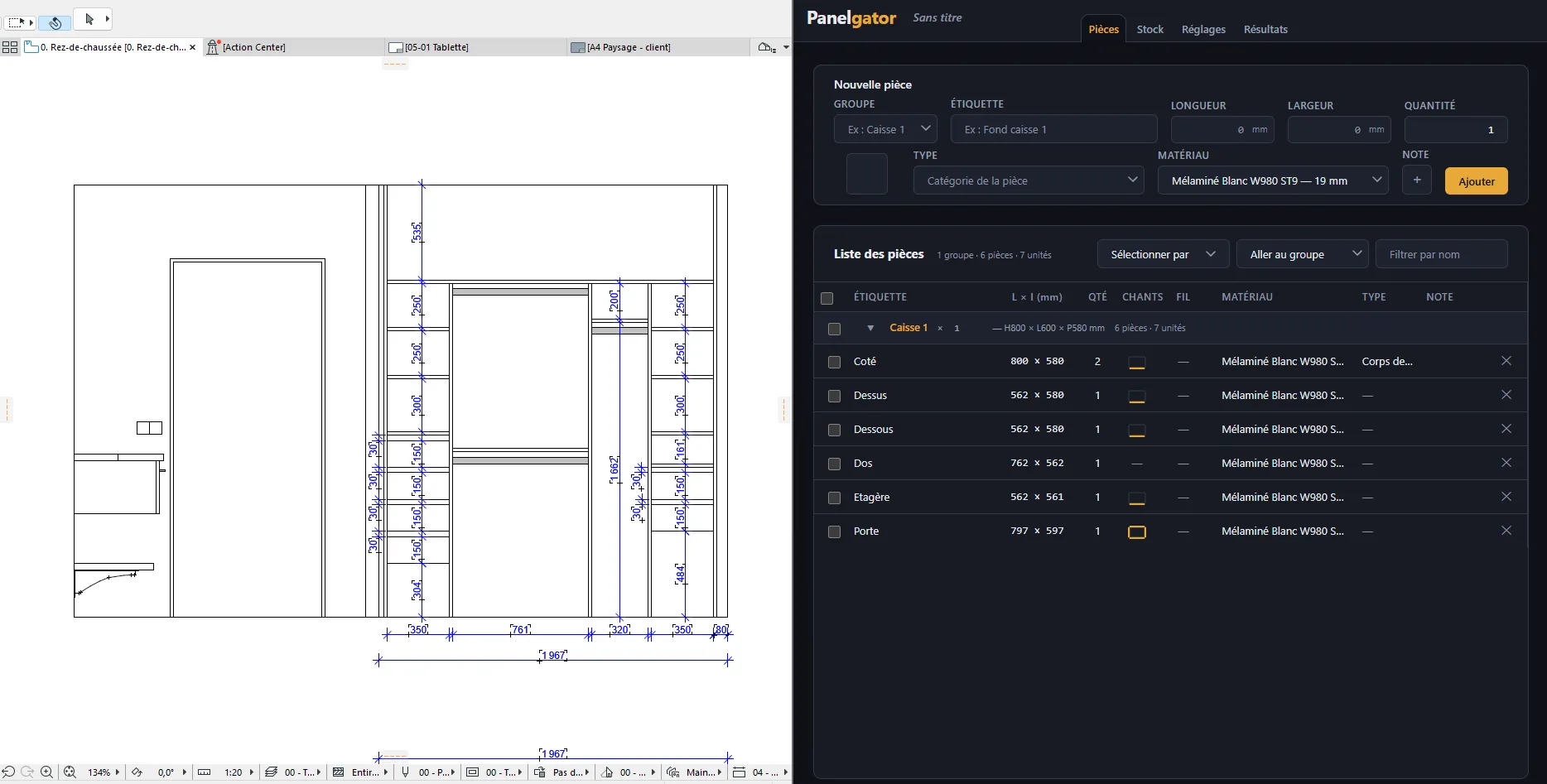
Panelgator is optimized to work in a reduced window if you only have a single screen available.
Trial period (30 days)
Section titled “Trial period (30 days)”On first launch, Panelgator starts a 30-day trial.
The window title shows the number of days remaining:
Panelgator — My project (Trial: 28 days remaining)During the trial you have access to all features:
- Project and part creation
- Full stock management
- Cutting layout (full multi-variant algorithm)
- All exports (PDF, DXF, labels, CSV)
- Permanent stock across projects
- Automatic updates
End of trial
Section titled “End of trial”When the 30 days are over, the application switches to locked mode:
- The activation modal opens automatically
- You must enter a valid license key to keep using Panelgator
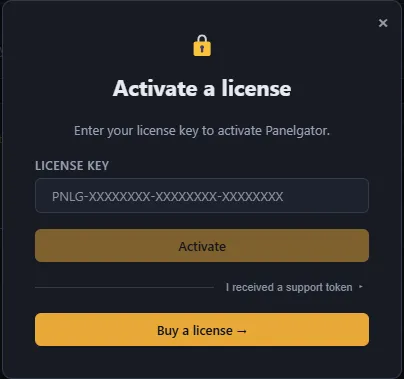
Your projects, permanent stock, and preferences are preserved: as soon as you activate a valid license, everything resumes right where you left off.
Recommended initial setup
Section titled “Recommended initial setup”Before creating your first project, take 30 seconds to set up Panelgator to your preferences. Open the Settings > General tab:
Language
Section titled “Language”French or English. Changes take effect immediately across the entire interface.
Millimeters (default), centimeters, or inches.
Light, Dark, or System (follows your Windows preference). Pick whichever works best for your workshop or office.
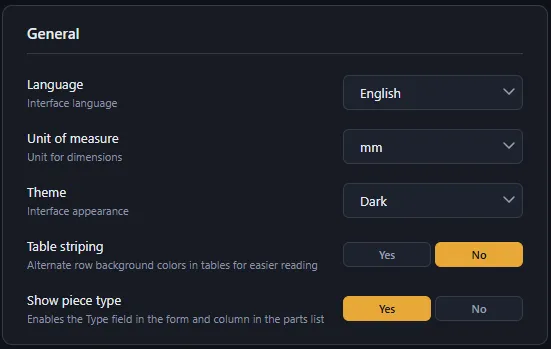
These preferences are machine-wide (not per project). They persist across sessions.
What’s next
Section titled “What’s next”- License activation — how to activate after purchase
- Tutorial: First project in 5 minutes — create your first cut list
- Concepts: Project, groups, and parts — understand the data model